Remember the days when you’d painstakingly hit “replay” every time you wanted to watch a favorite video clip on your iPhone again? Or, even worse, the clunky workaround of creating a slideshow just to get a video to repeat? Those days are happily behind us, thanks to significant advancements in Apple’s iOS.
With recent updates, particularly highlighted in iOS 26, your iPhone’s built-in Photos app has become a powerhouse of media management and playback. Not only has it seen exciting aesthetic overhauls like the Liquid Glass interface and practical improvements like the return of Library and Collections tabs for smoother navigation, but it also brings a highly requested feature right to your fingertips: effortless video looping.
Whether it’s a hilarious moment you want to share on repeat, a scenic time-lapse you wish to display continuously, or a captivating Live Photo you want to bring to life in an endless cycle, your iPhone now makes it incredibly simple. You no longer need third-party apps or complex edits. This guide will walk you through how to set your videos and Live Photos on an infinite loop, directly from your device.
The ability to loop any video stored in your iPhone’s library is a game-changer. Gone are the days of manual replays or the clunky slideshow hack. This feature is integrated seamlessly into the Photos app experience, offering a truly “set it and forget it” solution for continuous playback. To ensure you have access to this feature, make sure your iPhone is running a recent version of iOS, ideally iOS 26 or later, which consolidates many of these enhanced media capabilities.
Here’s how to get your videos playing on an infinite loop:
- Update Your iPhone: First and foremost, verify that your iPhone is compatible with and updated to iOS 26. While some looping features were present in earlier versions like iOS 18, having the latest OS ensures you have the most streamlined and robust experience, along with other new Photos app enhancements like Spatial 3D effects for background images.
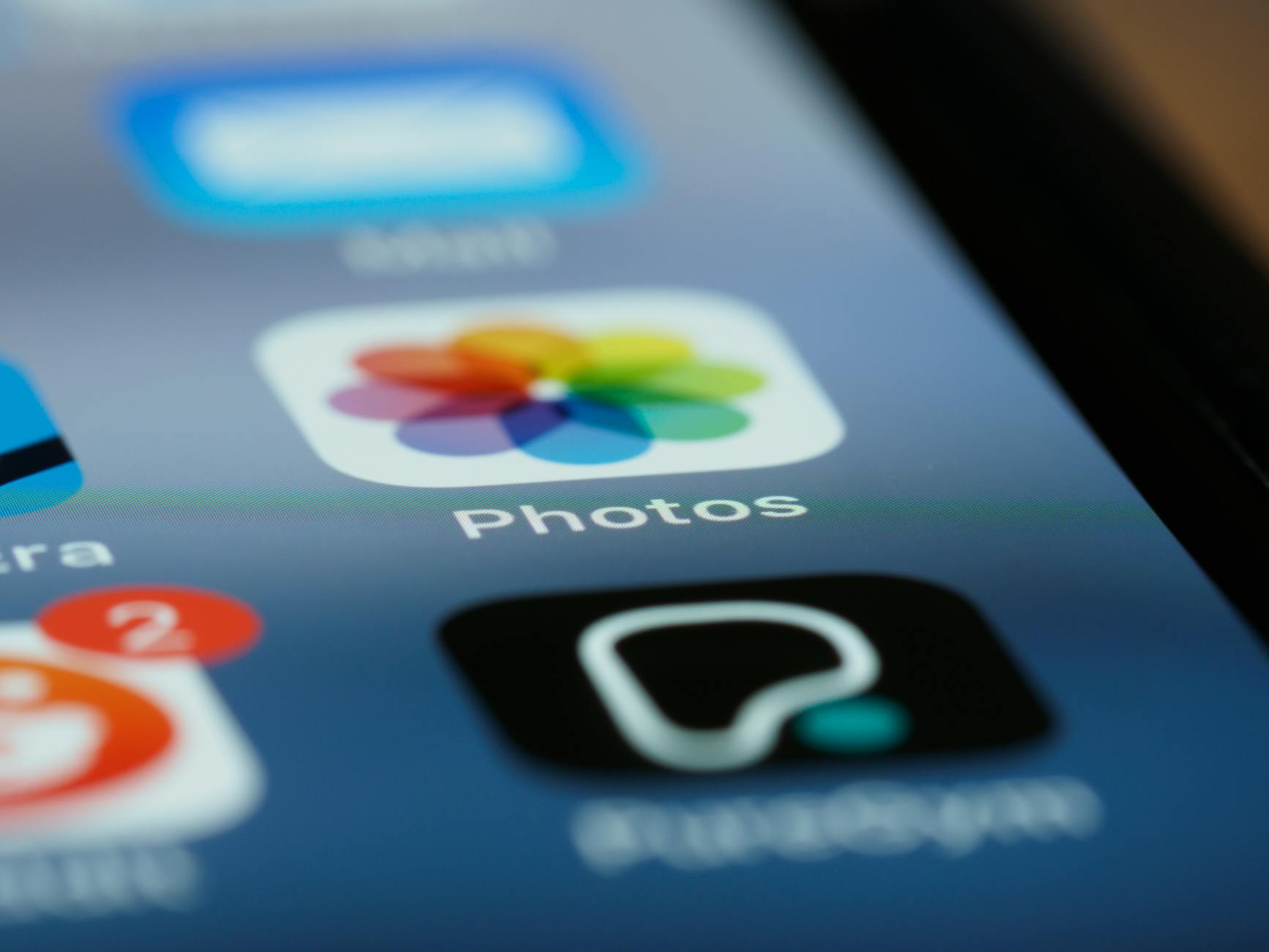
- Open Photos App: Launch the native Photos app on your iPhone.
- Select Your Video: Navigate through your library and tap on the specific video you wish to loop.
- Enjoy the Loop: That’s it! Once the video starts playing, you’ll immediately notice that it automatically replays itself once it reaches the end. This continuous loop will persist without any further action from your side until you either tap to pause the video or exit out of it by swiping or tapping the back button.
It’s remarkably straightforward. Apple has engineered this feature for ultimate user convenience, reflecting a broader trend in iOS 26 towards intuitive media interaction. Imagine being able to set a short highlight reel to play continuously at a party, or a funny clip providing endless amusement without you needing to touch your phone.
Bringing Live Photos to Life with Custom Loops
Live Photos are already magical, capturing a few seconds of motion before and after you snap a picture. But did you know you can enhance this magic further by turning them into dynamic, looping videos? This not only makes your Live Photos more engaging but also allows for creative expression by choosing different loop styles.
The Photos app provides a simple way to convert your Live Photos into various looping effects, transforming them from static moments with a hint of motion into captivating mini-videos that play on repeat.
- Select Your Live Photo: Open the Photos app and find the Live Photo you want to animate. Tap on it to open it.
- Access Live Photo Effects: Once the Live Photo is open, look for the “Live” drop-down button typically located in the upper left corner of the screen. Tap on this button.
- Choose “Loop”: A menu will appear displaying various effects like “Live,” “Loop,” “Bounce,” and “Long Exposure.” Tap on “Loop.”
- Watch it Play: Your Live Photo will now instantly transform and begin playing in an infinite loop. This effect seamlessly stitches the beginning and end of your Live Photo’s brief recording, creating a continuous playback that’s much more engaging than a single play-through.
This customization adds a fantastic dimension to your Live Photos, making them perfect for sharing on social media or simply enjoying within your own library. While the dossier briefly mentions you can “customize the way the loop looks,” the primary customization here is choosing the “Loop” effect itself from the available options. The seamlessness of the loop effect is often a form of customization in itself, as it intelligently blends the video segments.
Looping YouTube Videos on iPhone
Beyond your personal library, the convenience of looping extends to online content as well. If you’re a heavy YouTube user, you’ll be pleased to know that the YouTube native app on your iPhone also allows for easy video looping. While the specific steps can sometimes vary slightly with app updates, the general principle remains the same: you can set individual videos to replay continuously without needing to manually hit the play button after each watch. This is particularly useful for music videos, background noise, or tutorials you need to watch multiple times.
!– STRIDINGTECH_AD_PLACEMENT_3 –>
iOS 26 and Beyond
These looping functionalities are more than just minor tweaks; they represent Apple’s commitment to enhancing user interaction with their most personal media. The broader context of iOS 26, with its focus on visual appeal (Liquid Glass interface, Spatial 3D effects) and practical navigation (improved Library and Collections tabs), underscores a drive for a more intuitive and feature-rich Photos app experience. These aren’t just isolated features but part of a cohesive effort to make your iPhone an even more powerful and enjoyable tool for capturing, organizing, and experiencing your memories.
So, next time you’re reviewing a video or Live Photo, take a moment to explore these simple yet powerful looping options. They’re designed to save you time, enhance your sharing, and unlock new creative possibilities for your media content, all with just a few taps.